
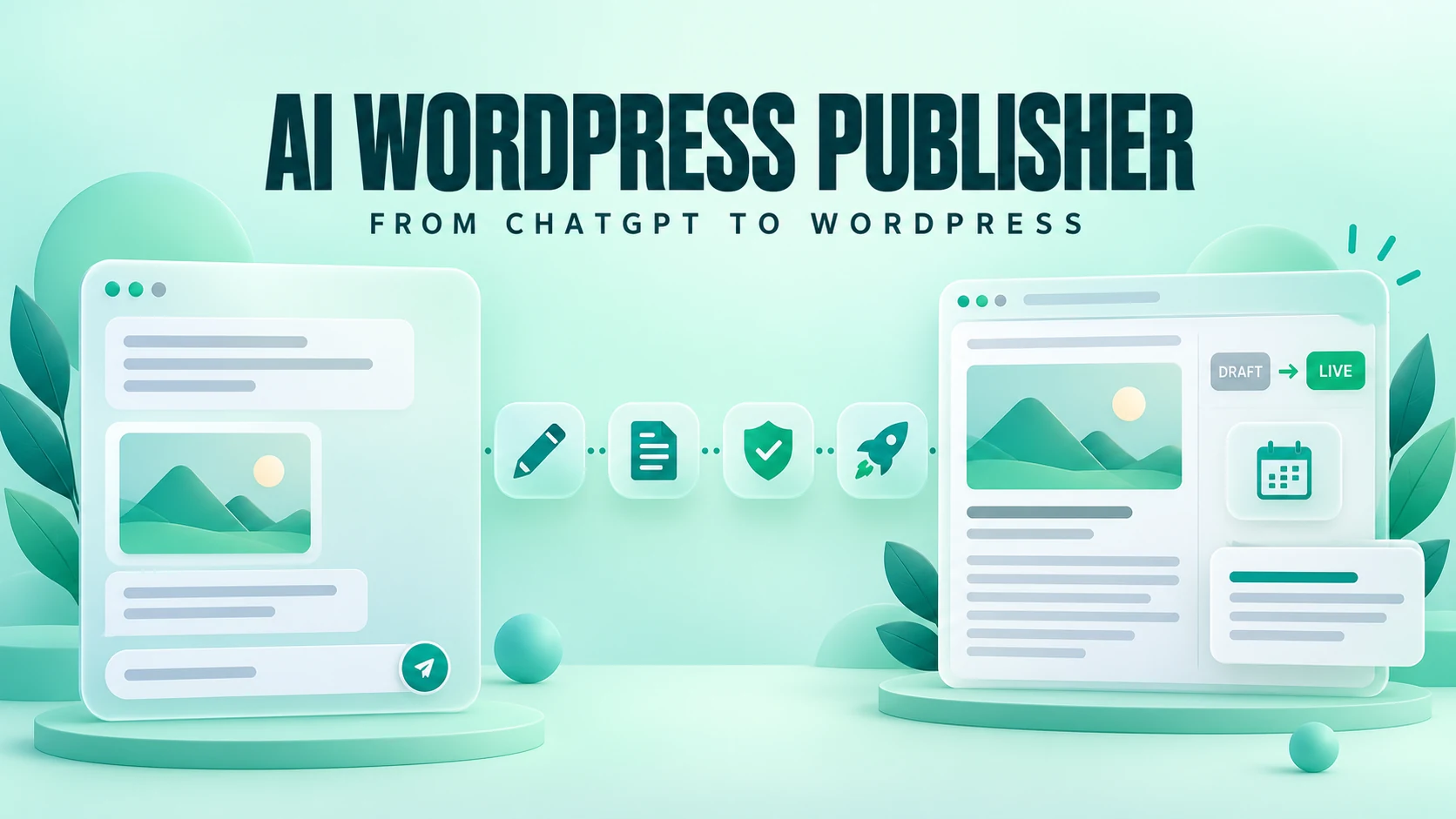


An AI WordPress publisher is a tool that lets an AI assistant such as ChatGPT save, schedule and publish blog posts on your WordPress website directly, so you stop copying drafts out of the chat. WP Publisher for ChatGPT is a free AI WP publisher built by Jayant Solanki. It connects ChatGPT to up to five WordPress websites, saves every new post as a draft, and publishes only after you confirm.
Writing an article in ChatGPT is only half the job. You still have to move it into WordPress, fix the formatting, upload the featured image, pick the author and category, fill in the Yoast SEO or Rank Math fields, and check everything before it goes live. This guide explains what an AI WordPress blog publisher does, how it differs from AI writing plugins and auto-blogging tools, how to connect ChatGPT to WordPress step by step, and how to keep a human review in charge of what gets published.
For the connection address and the latest version, see the WP Publisher for ChatGPT product page.
I made WP Publisher for ChatGPT and its Claude edition. Both are free, and there is no paid tier. Product facts below come from the product page for version 1.1.0, checked on 22 October 2026; where other tools are mentioned, I link to their own documentation.
- What it is: an AI WordPress publisher connects an AI chat (here, ChatGPT) to the WordPress REST API, so the AI can create drafts, upload images and publish posts for you.
- What WP Publisher for ChatGPT does: drafts posts and pages from HTML or Markdown, uploads featured images, sets authors, categories, tags and Yoast or Rank Math SEO fields, schedules and publishes approved posts, and edits WooCommerce products and custom fields. It has 25 tools and no delete tools.
- What keeps it safe: new posts are always drafts. Publishing, scheduling, unpublishing and live edits each need your confirmation and the post's exact title.
- Cost: free. You need a ChatGPT plan that allows custom MCP apps and a WordPress site on HTTPS.
- Setup: about five minutes. Add one server address in ChatGPT, then sign in with a WordPress Application Password. Nothing is installed on your website unless you want SEO fields.
1. What is an AI WordPress publisher?
An AI WordPress publisher is the missing link between an AI assistant and your website. The AI writes; the publisher carries out WordPress actions on its behalf: create a draft, upload an image, assign a category, schedule a post, publish it, or update a post that is already live.
Most modern AI publishers use the Model Context Protocol (MCP), an open standard that lets AI apps such as ChatGPT and Claude discover and call outside tools. The publisher exposes WordPress tasks as tools, and the AI chooses the right tool when you ask in plain English, for example:
Use WP Publisher to create a draft on my business website called "How to Prepare Your Website for a Product Launch." Add the article below, use an existing relevant category, and return the preview link.
That request saves a real WordPress draft. Publishing it is a separate step that you approve.
2. AI WordPress publisher vs AI writing plugin vs auto-blogging tool
People searching for an "AI blog publisher for WordPress" usually mean one of three different things. They solve different problems:
| Type | Where the writing happens | What it does in WordPress | Who decides what goes live |
|---|---|---|---|
| AI WordPress publisher (WP Publisher) | In your AI chat, such as ChatGPT | Saves drafts, images, SEO fields and schedules or publishes posts through the REST API | You, with a confirmation for every publish |
| AI writing plugin | Inside the WordPress editor | Generates or rewrites text in a post you are editing | You, by clicking Publish in WordPress |
| Auto-blogging tool | In the tool, often in bulk | Generates and publishes many posts on a schedule, sometimes without review | Often the tool |
WP Publisher deliberately sits in the first row. It does not mass-produce posts or publish on autopilot. If you want posts to go out at set times, you schedule each reviewed draft. That matters for quality: Google's guidance on generative AI content asks publishers to review AI-assisted content for accuracy before it is published.
3. What WP Publisher for ChatGPT can do
Version 1.1.0 has 25 tools: 12 only read, 5 write drafts, images, categories or draft products, and 8 change live content, each only after you confirm. There are no tools that delete posts, images, categories or users.
| Feature | What you can do from ChatGPT |
|---|---|
| Drafts from a conversation | Create a post or page draft from HTML or Markdown, with slug, excerpt, categories, tags and author |
| Draft edits | Revise draft, pending or scheduled posts; a scheduled post keeps its time |
| Approved publishing | Publish a reviewed draft after your confirmation and a title check |
| Scheduling | Schedule a draft for an exact date, time and timezone |
| Live edits and unpublishing | Change a published post's content, images or SEO fields, or move it back to draft, each with confirmation |
| Up to five websites | Connect five WordPress sites, each with its own login, and name the destination in each request |
| Images and featured images | Upload an image attached to the chat or from a public HTTPS link, add alt text, set it as the featured image |
| Authors | Credit a post to anyone on the site (needs an Editor or Administrator account) |
| Categories and tags | Read existing terms, create new ones, and edit category names, descriptions and SEO fields |
| Yoast SEO and Rank Math | Set the SEO title, meta description, focus keyword and canonical URL with the free SEO Bridge plugin |
| WooCommerce | Create simple products as drafts and update price, sale price, SKU, stock, short description, categories and gallery |
| Custom fields and blocks | Edit one Gutenberg block or one Advanced Custom Fields value, including a single repeater row, without touching the rest of the page |
Create WordPress drafts from a conversation
New posts and pages are always saved as drafts; there is no way to create one that is live straight away. You can ask for a title, body, slug, excerpt, categories, tags, author and SEO fields in one request:
Create a blog post draft on my main website. Use the title and article we approved, set the slug to "product-launch-checklist", and return the post ID and preview link.
Then open the draft in WordPress. The saved draft, not the chat, is what your readers will eventually see.
Publish to multiple WordPress sites from one chat
One connection can hold five WordPress websites, which suits a blogger with a few sites or a freelancer with a handful of clients. Each site has its own Application Password, and post IDs never mix: post 128 on one site and post 128 on another are different posts. If a request could mean more than one site, ChatGPT asks which one instead of guessing.
List my connected WordPress websites. Use the site at example.com for this article, and show me the destination before saving the draft.
Upload images and set featured images
Attach an image to the chat or give ChatGPT a public HTTPS link. PNG, JPG, WebP, GIF and AVIF files up to 20 MB are accepted (AVIF needs WordPress 6.5 or newer). ChatGPT can add alt text, place the image in the content or set it as the featured image in the same step.
Upload the attached image to this website. Set it as the featured image of the draft we just created, with alt text that describes what the image actually shows.
Uploading is not generating: WP Publisher uploads the image you provide. Write alt text for people using screen readers, not as a place to repeat keywords.
Choose authors, categories and tags
WP Publisher reads the authors, categories and tags that already exist on the chosen site, so drafts use real terms instead of near-duplicates. Name the author in plain words and ChatGPT looks up the right author ID. Crediting someone else needs an Editor or Administrator account; Author and Contributor accounts can only post as themselves.
Schedule WordPress posts with AI
Once a draft is reviewed, you can schedule it instead of publishing now. Give an exact date, time and timezone:
Schedule this reviewed draft for 5 November 2026 at 10:00 AM India Standard Time (UTC+05:30). Confirm the website, title and time before scheduling it.
Scheduling is an approval for the post to go live at that time, so ChatGPT asks you to confirm it like a publish. Afterwards, check the scheduled status in WordPress; reliable scheduling also depends on your site's own WordPress cron setup.
Update published posts with a clear scope
Refreshing old content is where an AI publisher saves the most time. Ask ChatGPT to read the live post, propose the change, and apply only the edit you approve:
Read the published article "Website Launch Checklist" on my business website. Suggest an updated introduction and show me the replacement text before changing the post.
If someone edited the post in WordPress after ChatGPT read it, WP Publisher can refuse the write rather than overwrite their changes.
4. How the ChatGPT WordPress integration works
The path is short:
Your request in ChatGPT → WP Publisher MCP server → your WordPress website (REST API).
ChatGPT chooses a tool, the hosted WP Publisher server sends the matching request to your site over HTTPS, and WordPress applies its normal user permissions before returning the result. Because ChatGPT can only use apps that are hosted online, the server is hosted; you install nothing on your computer and, unless you want SEO fields, nothing on your website.
The MCP server address is:
https://wp-publisher-mcp.vercel.app/mcp
You sign in through OAuth. Your website address, WordPress username and Application Password are entered on WP Publisher's sign-in page, never in the chat.
5. How to publish from ChatGPT to WordPress: setup in five steps
You need a WordPress site on HTTPS (version 5.6 or newer), a WordPress account that can write posts, and a ChatGPT plan that lets you add custom MCP apps. OpenAI changes which plans allow this from time to time, and Business or Enterprise workspaces may need an admin to allow custom apps.
Step 1: Create a WordPress Application Password
In WordPress admin, go to Users → Profile, scroll to Application Passwords, enter a name such as "ChatGPT" and click Add New Application Password. Copy it straight away; WordPress shows it only once. It is not your login password, and you can revoke it from the same screen at any time.
If the section is missing, a security plugin or your host may have turned Application Passwords off.
Step 2: Add the MCP server in ChatGPT
ChatGPT's menus change often. OpenAI's current documentation (checked 22 October 2026) describes this path on the web:
- Open ChatGPT Plugins, select the + button and choose Add custom MCP server.
- Name it "WP Publisher" and enter the server URL
https://wp-publisher-mcp.vercel.app/mcp. - Choose OAuth authentication, review the warning, and create it.
Some accounts still show the older path: Settings → Apps & Connectors → Advanced settings, turn on Developer mode, then Create app. Use whichever your account shows, and see OpenAI's custom MCP server guide for the latest steps.
Step 3: Connect your WordPress websites
Click Connect. On the sign-in page, add each website with a name, its address (such as https://example.com, without /wp-admin), your WordPress username and the Application Password. Add up to five, then check and connect; every login is tested before you return to ChatGPT.
To add a site later, reconnect: the websites you connected in that browser are remembered in an encrypted cookie and kept. Untick "remember" on a shared computer.
Step 4: Test the connection
Start a new chat, choose WP Publisher from the tools menu, and ask:
List my websites, then test website-1. Don't create or publish anything.
Check the reported site address and the account's permissions before writing anything.
Step 5: Create a small test draft
Save a short draft with two headings, a list and a link, then open its preview in WordPress. If you plan to use images or SEO fields, test them on this draft too. A staging site is the safest place to learn how your theme displays saved content. Once it is added on the web, WP Publisher is also available in the ChatGPT desktop and mobile apps on the same account.
6. A complete AI WordPress blog publishing workflow
Here is the workflow I recommend, with review at every step that matters.
- Brief ChatGPT properly. State the audience, purpose, tone and facts the article must include, and ask it to flag anything that needs checking. Add your own experience, screenshots and real customer questions.
- Review before saving. Check names, dates, prices, statistics, instructions and links. Cut claims you cannot support.
- Save it as a draft. Name the website and ask for the post ID, status and preview link back.
- Add the publishing details. Featured image, author, category, tags, excerpt, and the SEO title and meta description if SEO Bridge is installed.
- Inspect the WordPress preview on desktop and mobile: heading order, tables, links, image placement, author and slug.
- Approve publishing or scheduling. Read the site and title ChatGPT shows in the confirmation, then confirm. Open the live URL or the scheduled status to check the result.
7. Ready-to-use prompts for publishing to WordPress with ChatGPT
Copy these and change the site names and titles.
- Draft: "On website-1, create a draft titled 'X' from the article above, slug 'x', in the Guides category, credited to Priya Sharma. Don't publish."
- Featured image: "Upload the attached image to website-1 and set it as the featured image of draft 128, with alt text describing the image."
- SEO fields: "Suggest an SEO title under 60 characters and a meta description under 155 for draft 128. Show me first, then save the ones I approve."
- Schedule: "Schedule draft 128 on website-2 for Monday at 9:00 India time. Confirm the title and time first."
- Refresh a post: "Read post 342 on website-1, list outdated statements with suggested replacements, and change only the ones I approve."
- Find work in progress: "Which drafts are waiting on website-2?"
- WooCommerce: "Put product 2745 on sale for $19,500 and show me the old and new price before saving."
8. Set Yoast SEO and Rank Math fields with AI
Yoast SEO and Rank Math keep their fields out of the WordPress REST API, so no AI tool can set them through the API alone. The free WP Publisher SEO Bridge plugin (version 1.3.0) adds those fields, letting ChatGPT read and set:
- SEO title
- Meta description
- Focus keyword
- Canonical URL
It works on posts, pages, WooCommerce products and categories, has no settings and never contacts an outside service. Install it under Plugins → Add New → Upload Plugin on each site; Yoast SEO or Rank Math must also be active. Without it, everything else still works, and ChatGPT will tell you the plugin is missing if you ask for an SEO title.
A focus keyword organises your editing inside the SEO plugin; saving one does not make a page rank. For a unique article, keep the canonical URL as the article's own address.
9. WooCommerce products, custom fields and blocks
An AI WordPress publisher is not only for blog posts. From version 1.1.0, WP Publisher for ChatGPT can:
- WooCommerce: create a simple product as a draft with prices, SKU, stock, images and attributes, and update a product's price, sale price, SKU, stock, short description, categories or gallery. Variable product prices, orders and theme templates are not included.
- Advanced Custom Fields: with SEO Bridge 1.3.0, read and change ACF values by path, even one row inside a repeater or flexible content, and return the old values so they can be restored.
- Gutenberg blocks: change the text in one block on a page, keep the rest exactly as stored, and show a before and after.
Every change to live content waits for your confirmation and the item's exact name.
10. Is an AI WordPress publisher safe? Who controls publishing?
Handing an AI write access to your website is a fair worry. Here is how WP Publisher for ChatGPT limits it:
- Drafts first, always. New posts, pages and products start as drafts.
- Confirmation for every live change. Publishing, scheduling, unpublishing and every live edit are marked as actions that change your site, so ChatGPT asks you to confirm each one, and the title you give must match the post.
- No delete tools. It cannot delete posts, images, categories or users, or touch users, settings, plugins or themes.
- Passwords never in the chat. Application Passwords are entered on the sign-in page and encrypted (AES-256-GCM) into the connection token ChatGPT keeps. The server has no database and stores none of them.
- HTTPS and public sites only. It talks only to the HTTPS sites you connected and refuses private network addresses.
- Easy to revoke. Delete the Application Password in WordPress or disconnect the app in ChatGPT to cut off access.
Requests do pass through the hosted server, so read the WP Publisher privacy notice before connecting a client site. In ChatGPT, avoid remembering "approve" for publishing tools: your confirmation is the real check.
11. How to choose the best AI WordPress publisher
There is no single best AI WordPress publisher for everyone. Ask these questions:
- Where is your site hosted? On WordPress.com, its own MCP connection is the natural choice. On self-hosted WordPress, you need a hosted app such as WP Publisher or a plugin.
- Which AI do you use? WP Publisher has a ChatGPT edition (hosted app) and a Claude edition (a free Claude Desktop extension that runs on your computer).
- How much of the site should the AI control? If you only want content (posts, pages, products, categories and fields), a content-only publisher keeps risk low. If you want AI to manage users, plugins, settings or a whole store, plugins such as Easy MCP AI or AI Engine do more.
- Do new posts start as drafts, and can the AI delete? Check the tool's own documentation, not just its marketing.
- Does it handle your SEO plugin? Setting Yoast or Rank Math fields usually needs a small bridge plugin.
For a side-by-side table of the main options and their documented limits, see the comparison on the WP Publisher for ChatGPT page, or, if you use Claude, Best WordPress Publisher for Claude in 2026.
12. Manual publishing vs an AI WP publisher
| Task | Manual workflow | With WP Publisher for ChatGPT |
|---|---|---|
| Move an article into WordPress | Copy, paste and fix formatting | Ask ChatGPT to save a draft from HTML or Markdown |
| Choose the site | Log in to the right dashboard | Name one of up to five connected sites |
| Add an image | Upload in the Media Library | Attach it in the chat or give a public link |
| SEO title and meta description | Type them into Yoast or Rank Math | Approve the suggested fields (with SEO Bridge) |
| Schedule | Set the date in the editor | Ask for an exact date and time, then confirm |
| Refresh an old post | Find, edit and update it by hand | Approve a specific change; ChatGPT applies only that |
| Final check | WordPress preview | The same WordPress preview, before you confirm |
13. Common setup problems
A website will not connect
Check the website address, username and Application Password, the account's role, and whether a security plugin, firewall or host blocks the WordPress REST API.
ChatGPT shows no WP Publisher tools
Choose WP Publisher from the tools menu in that chat and check the app is still connected. For an OAuth or sign-in error, delete the app in ChatGPT and add it again with the same address.
SEO fields will not save
Check that SEO Bridge is installed and active and that Yoast SEO or Rank Math is active on the same site.
An image upload fails
Check the file type and size, and that any link is a public HTTPS address that returns the image itself.
A request times out
Look in WordPress before retrying. The draft or image may already have been saved, and retrying blindly creates duplicates.
14. Frequently asked questions
What is an AI WordPress publisher?
An AI WordPress publisher, also called an AI WP publisher or AI WordPress blog publisher, is a tool that lets an AI assistant such as ChatGPT or Claude carry out WordPress actions for you: create drafts, upload images, set categories and SEO fields, and schedule or publish posts. WP Publisher for ChatGPT is a free AI WordPress publisher that saves every new post as a draft and publishes only after you confirm.
Can ChatGPT post directly to WordPress?
Yes, when it is connected to a WordPress publisher app. With WP Publisher for ChatGPT, ChatGPT can save drafts, upload images, schedule and publish posts on up to five WordPress sites. New posts start as drafts, and publishing needs your confirmation.
Can AI publish blog posts to WordPress automatically?
Some auto-blogging tools publish without review, but WP Publisher does not. It saves drafts and lets you schedule each reviewed post for a date and time, so posts can go out automatically on schedule without going live unchecked.
Is there a free AI WordPress publisher?
Yes. WP Publisher for ChatGPT and WP Publisher for Claude are both free, with no account, subscription or usage limit. You still need your own ChatGPT or Claude plan and a WordPress site on HTTPS.
What is the best AI WordPress publisher?
It depends on your site and your AI. For self-hosted WordPress where you want content-only access, drafts first and several sites in one connection, WP Publisher is built for that. For WordPress.com sites, the WordPress.com MCP connection fits better, and plugins such as Easy MCP AI or AI Engine suit people who want AI to manage users, settings or a whole store.
Is WP Publisher for ChatGPT the same as a WordPress publisher for ChatGPT?
"WordPress publisher for ChatGPT" describes the type of tool; WP Publisher for ChatGPT is the product name of the one built by Jayant Solanki.
Do I need to install a WordPress plugin?
No. The publishing connection needs nothing on your website. Install the free WP Publisher SEO Bridge plugin only if you want ChatGPT to set Yoast SEO or Rank Math fields or edit Advanced Custom Fields.
Does it work with Yoast SEO and Rank Math?
Yes, with the free SEO Bridge plugin and Yoast SEO or Rank Math active. ChatGPT can then set the SEO title, meta description, focus keyword and canonical URL on posts, pages, products and categories.
Can I schedule WordPress posts from ChatGPT?
Yes. Ask ChatGPT to schedule a reviewed draft for an exact date, time and timezone, confirm it, and check the scheduled status in WordPress.
Can it manage WooCommerce products?
Yes, for simple products. It can create a product as a draft and change a product's price, sale price, SKU, stock, short description, categories and gallery. Variable product prices and orders are not included.
How many WordPress sites can I connect?
Up to five in one connection, each with its own Application Password. Every request names the destination site.
Does it work in the ChatGPT mobile and desktop apps?
Yes. Set it up once in ChatGPT on the web, and it is available in the desktop and mobile apps on the same account.
Is there an AI WordPress publisher for Claude?
Yes. WP Publisher for Claude is a free Claude Desktop extension with the same drafts-first approach. It runs on your own computer and uploads images from folders you choose.
Will publishing AI-written posts hurt my Google rankings?
Google does not rank content lower simply because AI helped write it, but it asks publishers to review AI-assisted content for accuracy and usefulness. An AI WordPress publisher changes how posts reach WordPress, not their quality, so keep a human review before every publish.
How do I get started?
Open the product page, add the MCP server address in ChatGPT, connect your WordPress site with an Application Password, test the connection and save a short draft before you publish a full article.
Start with one reviewed draft
An AI WordPress publisher removes the copy-and-paste step between ChatGPT and WordPress, not the editor. Connect one website, save one small draft, check how your theme shows it, and build a publishing routine you can repeat.
Ready to connect your site? Get WP Publisher for ChatGPT, the free AI WordPress publisher for ChatGPT.
- WP Publisher for ChatGPT: product page, version 1.1.0 (author's own product), privacy notice
- OpenAI: Add a custom MCP server in ChatGPT
- Google: Using generative AI content
- All pages checked on 22 October 2026.

Jayant Solanki
AI-Ready SEO, GEO & AIO strategist based in Indore, India, working with eCommerce, local-service and global brands across India, the UAE and the US. I built WP Publisher for ChatGPT and WP Publisher for Claude, and I publish with them myself. Both are free.
More about Jayant →